Friday, April 3, 2020

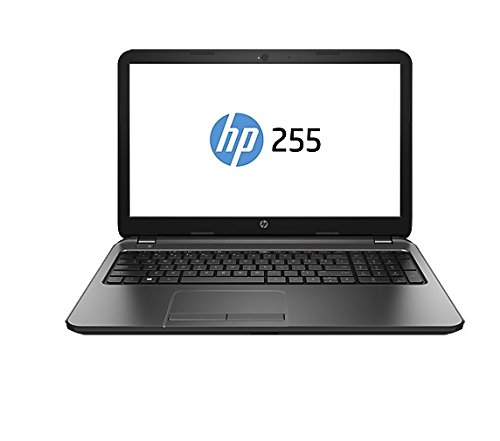
HP 255 G3 laptop is slow and keep freezing

Today i got one HP 255 G3 laptop for repair, because it was extremely slow so i cleaned up old partitions and installed new windows 10. HP 255 G3 - Notebookcheck.net External Reviews
After install it was much better, but then after some updates it was again extremely slow so i tried to update all drivers and updated latest Bios. After bios update is started to use UEFI and said that cant find operating system so i had to install windows again. After install it worked fine for while untill windows updated AMD Radeon graphics driver. I tried many different older drivers, but all had same issues. I downloaded latest AMD driver (2015) from HP product page and that worked fine.

So dont use new AMD drivers for older laptops with AMD graphics!

Thursday, March 19, 2020

Changing the Remote Desktop (RDP) port

Why you want to change your RDP port?

First thing is for security reason because bad guys keep scanning your 3389 port, if its open!
Another reason is, if you have more than one remote machine in your local network, then you can change different ports for different machines.
If you have only one remote machine in your local network, then you dont need to change your internal RDP port you can change external port in router and forward it to your internal port.

Attention!

Make sure that you have also already set the firewall to the new port before you apply the settings below.
For customers who do not want the Remote Desktop to listen to default port 3389: http://support.microsoft.com/kb/306759
  1. Start the Registry Editor
  2. Click the following registry subkey: 
    HKEY_LOCAL_MACHINE\System\CurrentControlSet\Control\TerminalServer\WinStations\RDP-Tcp\PortNumber
  3. Choose Modify in the context menu and select Decimal.
  4. Enter the new port number and click OK.
  5. Close the Registry Editor.
The change only goes into effect once the server is restarted. After the restart, the RDP is only accessible via the new port number. Please also notify the support desk if you will be using an alternative port. The support desk can then log in for support without having to ask additional questions.

Tuesday, October 23, 2018

Cannot change default browser from TwinUI

Many users have reported to me that their default browser has changed to Cannot change default browser from TwinUI and they cannot change it back to any other browsers and default programs app just closes.
Here is easy fix just open Windows powershell (you may need to run as administrator) and copy power shell script there.

Get-AppXPackage | Foreach {Add-AppxPackage -DisableDevelopmentMode -Register “$($_.InstallLocation)\AppXManifest.xml”}


Now you can go to Default programs and change it to any other browser.


Thursday, June 1, 2017

Install multiple programs at once with these convenient tools

If you ever had to set up a new Windows computer from scratch, you know how time consuming it can be to install all the programs you need on the machine.
While you could use specifically prepared Windows images to install all the required programs automatically during the installation of the operating system, it is not something that most users do as the process itself is rather technical.
Things are easy if you use portable software predominantly, as you can simply copy all the programs you require from one source (a DVD, Flash Drive, other storage devices) to the system and be done with that.
Some programs are not available as portable versions though, and not everyone wants to use them either. This would mean to run installers left and right on the system, carefully monitoring the installation process to make sure that adware does not slip by, until all programs are installed.
A better way, at least when it comes to popular applications and programs, is to use multi-installers.

Ninite

Ninite is a simple tool that you configure on the project website. Basically, all you need to do is select the programs that you want to install on your system on the homepage, and click on the get installer button afterwards to create a special installer for the selection.
The service supports over 100 different programs for Windows currently including Chrome, Firefox, Malwarebytes Anti-Malware, Eclipse, VLC Media Player, 7-Zip, TeamViewer, KeePass 2 Everything, or SumatraPDF.
Ninite promises that the installer will always include the latest version of the selected program, and that individual program installers won't include toolbars and other third-party offers. It downloads the programs from the official developer website, and will check digital signatures or hashes to verify the authenticity of the application.
All programs are downloaded and installed without user interaction, and the custom Ninite installer can be run again at a later point in time to install program updates if available.

Chocolatey

Chocolatey is a package manager similar to apt-get, but for Windows. It offers more packages and features than Ninite, but is more complicated to use as you run the commands from the command prompt.
This becomes obvious right from the get go as you need to run a command from an elevated command prompt to install Chocolatey on the system.
You can then browse the available packages on the official website and install those that you want added to your system.
The core command to install a package is "choco install" followed by the package name. Chocolatey supports additional commands or installer arguments that you can make use of, for instance to add parameters to the installer or install multiple programs at once by adding their names after the install command, e.g. choco install notepadplusplus googlechrome atom 7zip.
Chocolatey is powerful but at the same time not nearly as easy to use as Ninite. Good news is that it supports thousands of programs instead of just the hundred that Ninite supports, bad news that it will take longer to set it up and find the correct names for the programs to get them installed.

Silent Install Helper

Unlike the programs that we have reviewed so far, Silent Install Helper does not limit you in regards to the applications that you can install using it.
While that is a positive, it means more work for you initially as you need to download the program installers to your system first before you can create a new batch installer job using Silent Install Helper.
What you do is add all the installers you have accumulated to the application. The program attempts to detect unwanted offers and will display information about those to you in its interface when it recognizes those. While that is not a surefire way of making sure junk does not get installed on your system, it may help you automate the declining of said offers.
You can customize the program installer, for instance by running commands before or after installation, or setting the unwanted software flag.
We have reviewed Silent Install Helper back in 2015, and suggest you check out the review for additional information.
Silent Install Helper does not restrict you to a collection of programs. Instead, it lets you create batch installers for any program you may come across.

Silent Install Builder

This is a commercial program but a fully functional evaluation version is provided on the developer website.
Each package you create contains one or multiple installer files or scripts that you want executed on the system.
As the name suggests, packages will be installed silently in the background, and you can create unattended installations as well.
Silent Install Builder recognizes popular application installers, and provides you with options to automate the installation of software using scripting language which allows you to record an installation process (which is mostly handy for installations on multiple computer systems).
As is the case with Silent Install Helper, this program requires that you download all programs that you want to install in one operation before you can do so.

RuckZuck

RuckZuck is a portable program for the Windows operating system that you can use to install multiple software programs or to update them.
Simple mark the programs that you want to install on your system, and hit the "start installation" button afterwards.
RuckZuck will download the applications using PowerShell and install them on the system once downloaded.
Programs are sorted into groups like Imaging, Audio or Security, and you will find many popular programs listed by it. All in all, a couple hundred programs are supported currently by the application.

Just Install

Just Install works in many regards just like Chocolatey. It is command line program that you use to install one or multiple of the 120 packages it supports.
It supports many popular programs such as Firefox, Chrome, KeePass, Adobe Flash, Steam or VLC Media Player to name a few.
Thursday, May 25, 2017

How to stop Windows 10 automatically rebooting after updates

I run one windows 10 machine as video and terminal server thats runs 24/7 and it really makes me mad when it just makes windows updates and then just restart without asking.

Windows 10, like previous versions of Microsoft’s operating system, often needs to reboot to action an update, and will occasionally do so at the least appropriate moment.

While Windows 10 updates are mandatory, you can control (to a degree) when they install, and more importantly if and when Windows 10 restarts afterwards.

The first thing to do is to make sure Active Hours are set -- this will stop Windows 10 rebooting at a time when you are likely to be using your computer.

To set this up, go to Start > Settings > Update & Security > Windows Update.

Click on Change active hours, and set the time when you start using your PC, and the time when you finish.

The maximum duration allowed is 12 hours. Click Save.

Another way to control when Windows 10 restarts following an update is through the Control Panel.

Right-click the Start button and select Control Panel. Click System and Security, and then select Schedule tasks under Administrative Tools. Expand Task Scheduler Library on the left, and go to Microsoft > Windows > UpdateOrchestrator.

Select Reboot in the middle pane, and then click Disable under Selected Item.

Hopefully that will stop Windows 10 from rebooting automatically, although the OS will probably re-enable the task at some point.

Tuesday, November 29, 2016

Shorten URLs and earn money

Shrink and Share

Signup for an account in just 2 minutes. Once you've completed your registration just start creating short URLs and sharing the links with your family and friends.
You'll be paid for any views outside of your account.

Save you time and effort

ouo.io have a simple and convenient user interface, and a variety of utilities.
We also provides full mobile supports, you can even shorten the URL and view the stats on a mobile device.

Monday, September 21, 2015

Restore .EXE File Association in Windows 7/Vista After Incorrectly Associating It With Another Program

Today i got phonecall from my coworker that she accidentally use Open With dialog to associate .exe file types with Internet Explorer, causing every program to open in that chosen application. Windows provides no option to reset the .exe file associations, and you’ll have to do this manually. I tried to open regedit or command prompt, but this caused Internet explorer to open every time when a program was launched.
So i googled and found help from sevenforums comments:

Here is a copy of the default registry entries to restore EXE files. After you download the REG file to your desktop, just double click on it to merge it to the registry. You may need to logoff and logon, or restart the computer to apply.

Hope this helps,
Shawn


Attached Files
File Type: regDefault_exe.reg (4.7 KB, 4411 views)
Thanks to Brink/Shawn :)